Merging Calendars with CalUnite
Detailed guide for merging multiple calendars for sharing with friends and family.
CalUnite
A lot of people manage their personal lives with digital calendars, with Google and Apple probably holding the most market share. The common practice is to split events onto multiple calendars like work, sports, meeting with friends, etc…
Now, suppose you want to let your family or significant other know your meetings and appointments. You could either give them access to your account (if they use a compatible calendar app), or share each calendar individually. Both options are rather inconvenient.
So I’ll showcase a small tool called CalUnite, allowing you to easily merge and serve subscribable calendars with lots of configuration options.
This guide is written for CalUnite 1.7
Future versions might have more features not outlined in this post.
Installing
Setup
CalUnite runs in Docker. The image is optimized for a super small size (<10 MB as of the time of writing), taking a similarly small amount of resources while running as well.
The easiest and most convenient way to use it is by using Compose:
compose.yml
services:
  calunite:
    image: jojodicus/calunite
    container_name: calunite
    restart: unless-stopped
    volumes:
      - ./calunite:/config/
    ports:
      - 8080:8080
Next to the compose file, create a directory named calunite and create the file config.yml in there,
it can be left empty for now. We will go into the different configurations options in the Configuration section below.
directory structure:
.
├─ compose.yml
└─ calunite/
   └─ config.yml
To start the compose stack, run docker compose up.
For running in the background in detached mode, use docker compose up -d.
Serving publicly
For now, everything is only served to the LAN. At least, if you’re not running this on a VPS or similar server. If you want to open CalUnite up to the internet or want to enable HTTPS, see my other blogpost
Configuration
Environment Variables
CalUnite exposes some options in environment variables.
To use them, you can specify them in your compose file, then restart the compose stack (run docker compose up [-d] again):
services:
  calunite:
    image: jojodicus/calunite
    ...
    environment:
      VARIABLE_NAME: value # or "value" if it contains :{}[],&*#?|-<>=!%@\
CFG_PATH
Default: /config/config.yml
Where the configuration file lies in the container. If you want to use a setup different to the one recommended, you should make sure to mount the folder in the container, not just the config files. If you do it like that, you will be able to hot-reload configurations without needing to restart CalUnite.
CRON
Default: "@every 15m"
How often the fetching and subsequent merging of calendars should happen. I recommend keeping this at the default value. Most calendar apps only sync once a day anyway, so it can take a while for changes to be updated for subscribers.
PROD_ID
Default: CalUnite
Value of the PRODID field in the resulting calendars.
Can be kept default for most instances as well,
as it’s usually not visible to users anyway.
CONTENT_DIR
Default: /wwwdata
Directory inside the container where the resulting files are stored and served from. You can bind-mount this to the Docker host if you want to see what’s going on.
Keep in mind that it’s not advised to store things not managed by CalUnite in there. The directory gets cleared during a config reload. If you want to serve other files (like a web-page) on the same connection, consider a reverse proxy or other middleware. Check the Github for more info.
FILE_NAVIGATION
Default: false
If the webserver should create navigation webpages.
For example, if you have the calendars calunite.dittrich.pro/a.ics and calunite.dittrich.pro/b/c.ics,
it will make a page showing the directory structure so you can view it in the browser:
calunite.dittrich.pro/
├─ a.ics
└─ b/
   └─ c.ics
It defaults to false to keep the calendars somewhat private.
DOT_PRIVATE
Default: true
If calendars prefixed with a dot (.) should be private to CalUnite.
If false, they will be served as usual.
This option allows for easy creation of local aliases, without needing to make them public.
Keep in mind it will only look at the first character of a calender,
so .a/cal.ics will be private, while a/.cal.ics will not.
ADDR
Default: 0.0.0.0
Address to bind to, can be left default for most instances.
PORT
Default: 8080
Internal port that CalUnite runs on. If you are looking to change the public port, do that in the compose file by setting:
ports:
  - 8081:8080 # now 8081 is the public port
Config.yml
These are the things you can do in the config.yml.
If you followed this tutorial, you don’t need to restart the container.
All changes are applied immediately after saving.
Basic Calendar
john.ics:
  title: "John's calendar"
  urls:
    - https://calendar.google.com/calendar/ical/xyz@group.calendar.google.com/private-xyz/basic.ics # a Google calendar
    - webcal://p132-caldav.icloud.com/published/2/xyz... # an Apple calendar
    - https://company.net/events.ics # third-party calendar
The title is optional.
If omitted, it will default to CalUnite Calendar.
Now, you can inspect the merged calendar using curl localhost:8080/john.ics.
To filter for events, use curl localhost:8080/john.ics | grep SUMMARY.
Change localhost and port for your setup if needed, or add https if you have that set-up.
Subdirectories
calendars/john.ics: ...Will be served on localhost:8080/calendars/john.ics.
Reference other Calendars
You can reference other calendars as well. The order you define them in the config doesn’t matter, CalUnite will resolve them for you:
sports.ics:
  urls:
    - ...

john.ics:
  urls:
    - sports.ics
    - work.ics

work.ics:
  urls:
    - ...
If you have a cyclic definition, an error is shown in the logs and nothing will be served:
john.ics:
  urls:
    - work.ics

work.ics:
  urls:
    - john.ics
Private Calendar
If DOT_PRIVATE is true, you can create local aliases for calendars:
.short.ics:
  urls:
    - https://a.very.long.domain.name.net/with/a/very/long/path/to/the/calendar.ics
    - https://another.website/calendar.ics

john.ics:
  urls:
    - .short.ics
    - https://company.net/events.ics
Changing Event Titles
Especially useful with private calendars, you can change all event titles in bulk:
work.ics:
  event_format: '[Work] %s'
  urls:
    - https://company.net/events.ics
The format follows standard Go fmt with the first parameter being the event name as a string.
TLDR: use %s where you want the original title to go, insert it at most once and don’t use % anywhere else in the format specifier.
Interfacing with existing Calendar
Exporting and importing Google calendars only work with the web version, not the app. If you are on mobile, switch to the desktop view first by clicking the button at the bottom of the page.
Everything is done in the settings.
Export
- Select a calendar on the left sidebar
- Scroll down to “Secret address in iCal format”
- Click the copy button and confirm
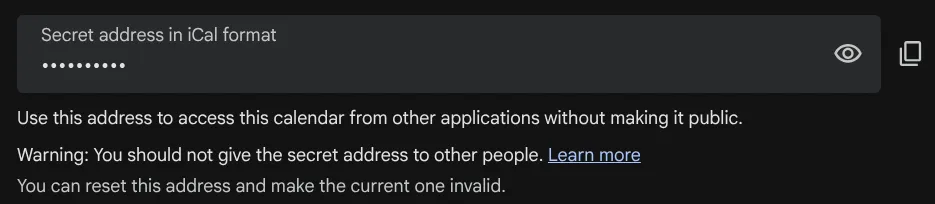
Or mark the calendar as public and copy the public link. Not recommended though.
Import
- Go to the calendar subscription page (from URL)
- Paste the link to the CalUnite calendar and hit “Add calendar”
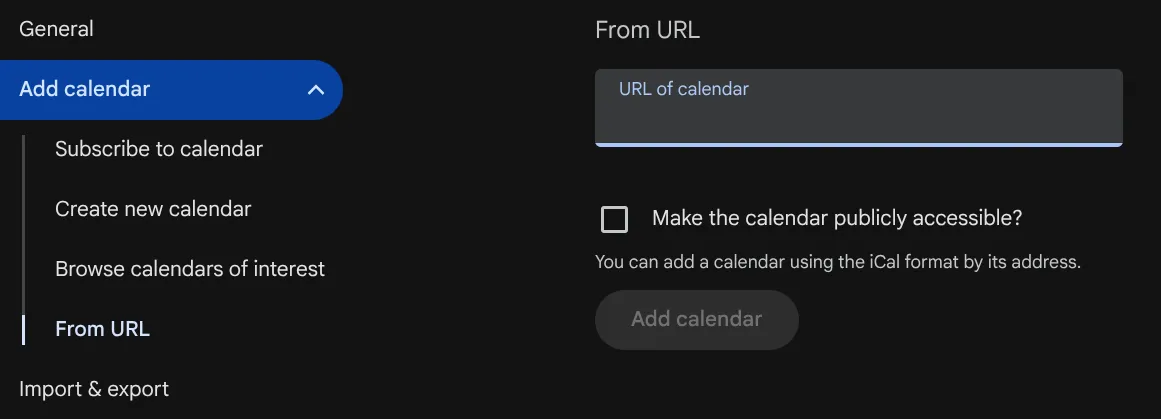
Apple
Export
- Where the calendars are shown, click the person or information icon, depending on your device
- Check “Public Calendar” (note that the terminology differs from Google)
- Copy the share link
Import
- Where the calendars are shown, scroll down to “Add Calendar”
- Click “Add Subscription Calendar”
- Paste the link to the CalUnite calendar and click “Find”